Try this setup#
Open in the editor Home page → Editorial product edit
Pair an editorial image with a small group of related products.
- Open Editorial product edit and choose the main image and its accompanying text.
- Connect your featured products using the product controls provided by the section.
- Check that the image and products belong to the same story. Replace the illustration and any automatic starter selections with your own edit.
See the Editorial product edit controls
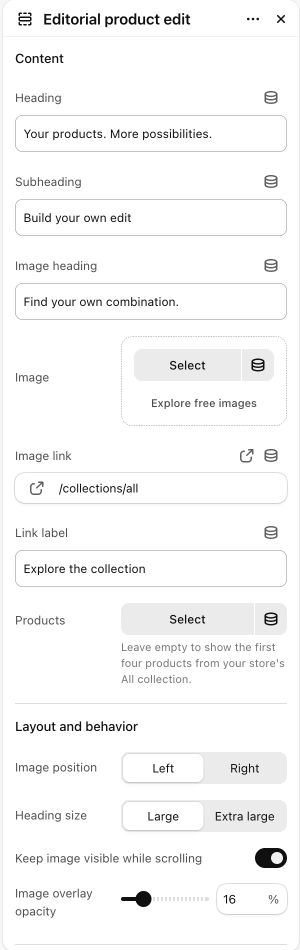
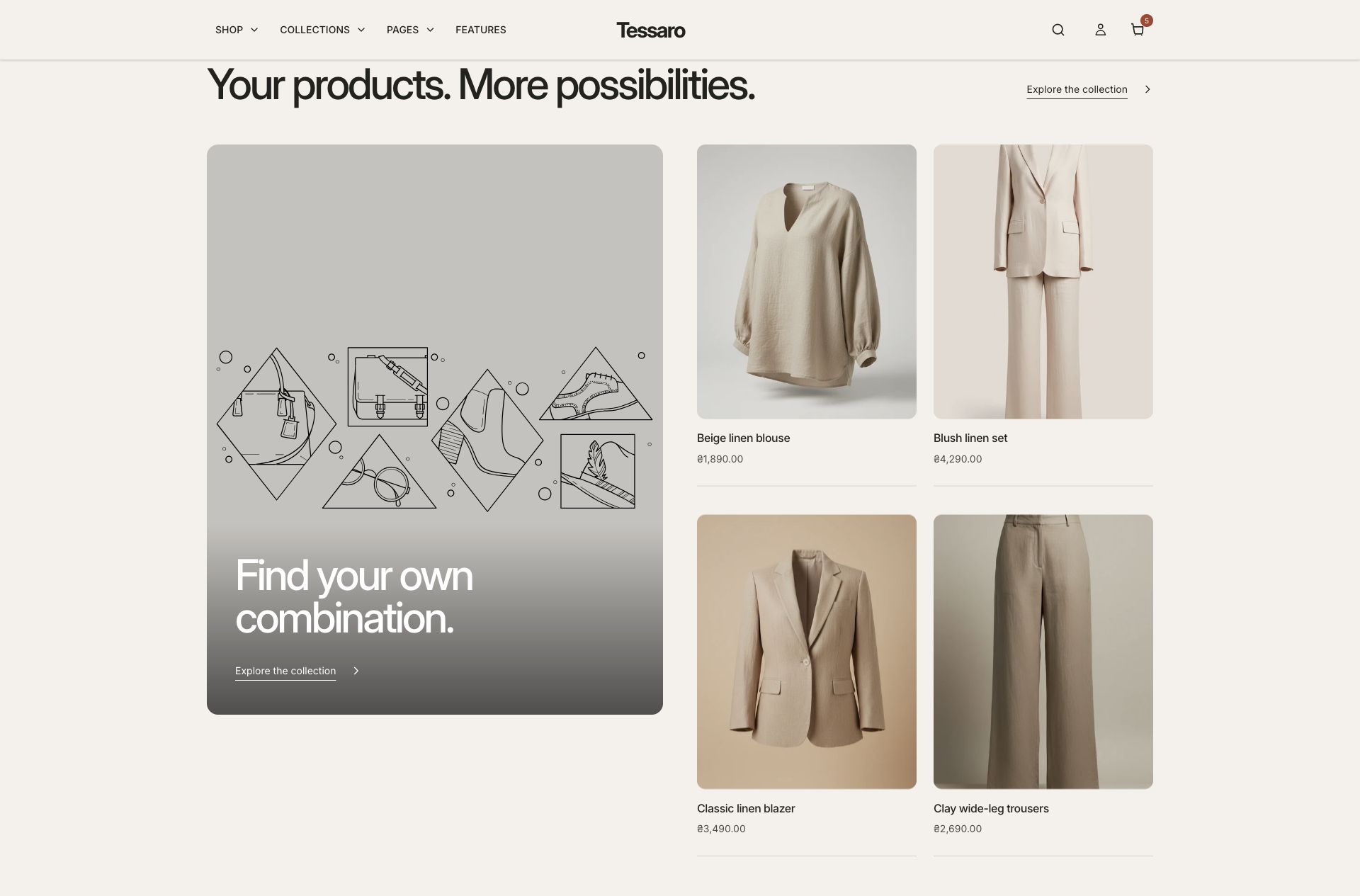
What to look for The editorial panel and product cards form one clear selection, with useful product destinations.
When to use it#
Combine an editorial image with a curated product selection.
Set up#
Choose the main image, product list, headings and optional destination.
Available from Add section where supported by its template restrictions. Excluded from: groups: header, footer
Section settings#
These are schema defaults. Your installed theme or selected preset can use different saved values.
Content
Heading#
Adjust this control in the theme editor and preview the result in the relevant template.
- Control
- text
- Default
- The everyday edit.
Subheading#
Adjust this control in the theme editor and preview the result in the relevant template.
- Control
- text
- Default
- Selected with intention
Image heading#
Adjust this control in the theme editor and preview the result in the relevant template.
- Control
- text
- Default
- A softer perspective.
Image#
Adjust this control in the theme editor and preview the result in the relevant template.
- Control
- image picker
- Default
- Not set
Image link#
Adjust this control in the theme editor and preview the result in the relevant template.
- Control
- url
- Default
- Not set
Link label#
Adjust this control in the theme editor and preview the result in the relevant template.
- Control
- text
- Default
- Explore the edit
Products#
Leave empty to show the first four products from your store's All collection.
- Control
- product list
- Default
- Not set
Layout and behavior
Keep image visible while scrolling#
Adjust this control in the theme editor and preview the result in the relevant template.
- Control
- checkbox
- Default
- On
Colors
Background#
Adjust this control in the theme editor and preview the result in the relevant template.
- Control
- color
- Default
- #F4F1EB
Text#
Adjust this control in the theme editor and preview the result in the relevant template.
- Control
- color
- Default
- #22221F
Image text#
Adjust this control in the theme editor and preview the result in the relevant template.
- Control
- color
- Default
- #FFFFFF
Accent#
Adjust this control in the theme editor and preview the result in the relevant template.
- Control
- color
- Default
- #A5442C
Spacing
Margins add space outside the section. Padding adds space inside it.