Add your logo and connect the menu#
Open in the editor Header → Logo and Navigation
Make shared navigation recognizably yours.
- Enter Text logo or select a Logo image.
- Set Logo width (desktop) and Logo width (mobile) separately.
- Choose Main menu, then preview its destinations.
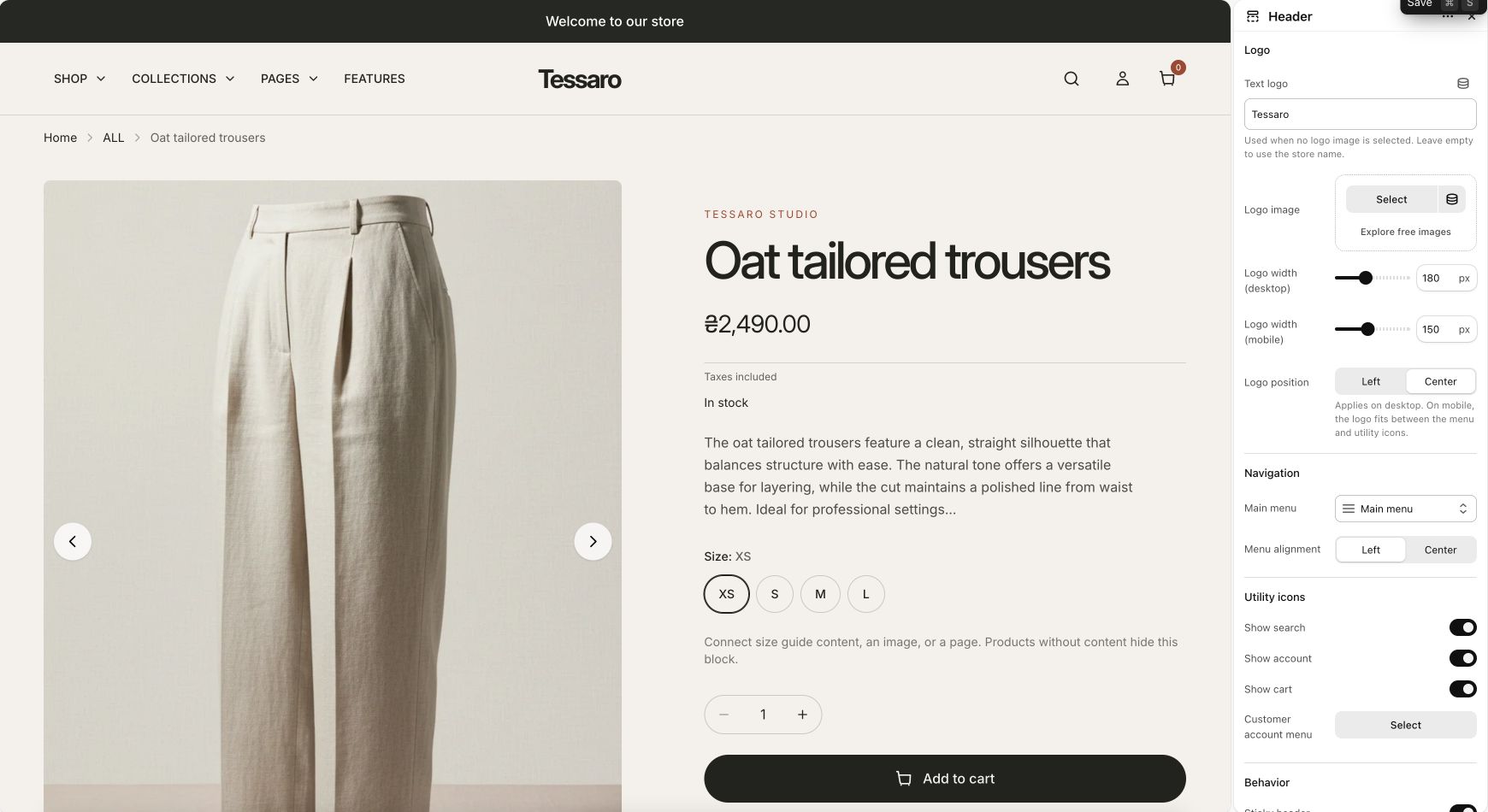
What to look for The header uses your brand and the menu links lead to real pages.
Brand and layout#
- Open the shared Header section.
- Choose a Logo image or enter a Text logo. With neither set, the existing header uses your store name.
- Set desktop and mobile logo widths separately. Choose the logo position and menu alignment.
- Choose the Main menu. Create and organize its links in Shopify’s menu administration.
- Choose whether search, account, cart, sticky behavior, and hide-on-scroll behavior should appear.
Configure a mega menu#
- Add a Mega menu block inside Header.
- Enter the Main menu item title to match the top-level menu item you want to enhance.
- Enable the block and choose Menu if you want a different menu for the panel.
- Optionally select up to two promotional images, headings, and links.
- Preview with a mouse and keyboard, then test the mobile menu. Check that every parent item and child link has a useful destination.
Menu badges#
Add a Menu badge block, enter the matching menu item title, and choose badge text and color. Keep text short enough for narrow navigation layouts.
Customer account menu#
The header uses Shopify’s account component. Account availability, account type, sign-in behavior, and menu contents depend on Shopify’s customer account configuration. Choosing an icon or showing the component does not create an account experience or verify a Shop sign-in flow.
Common issues#
| Issue | Check |
|---|---|
| Mega menu does not attach | Match the top-level item title and enable the block. Confirm the selected navigation has links. |
| Blank or unhelpful parent link | Review its URL and nested links in Shopify. The theme does not invent a destination for a # link. |
| Logo looks too large on mobile | Reduce the separate mobile logo width and test a long store name. |
| Menu differs from demo | Demo menu records do not come with the theme ZIP. Connect your own menus. |