Try this setup#
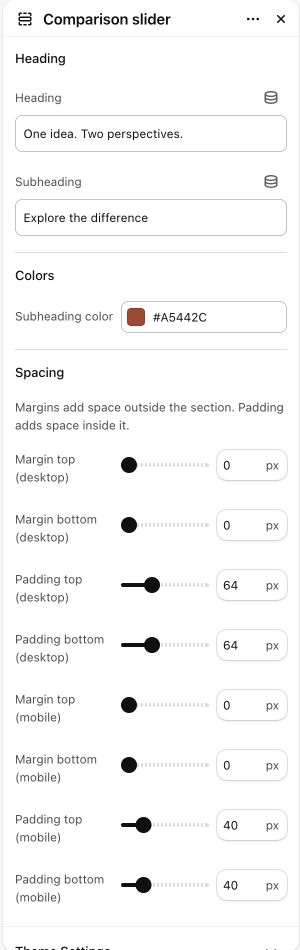
Open in the editor Home page → Comparison slider
Help visitors compare two views of the same subject.
- Open Comparison slider, select its Image pair block and choose the before and after images.
- Use matching dimensions and framing so the divider reveals a useful difference. Write accurate labels for both sides.
- Move the handle across the image and try the control with a keyboard. Check the comparison again on a phone.
See the Comparison slider controls
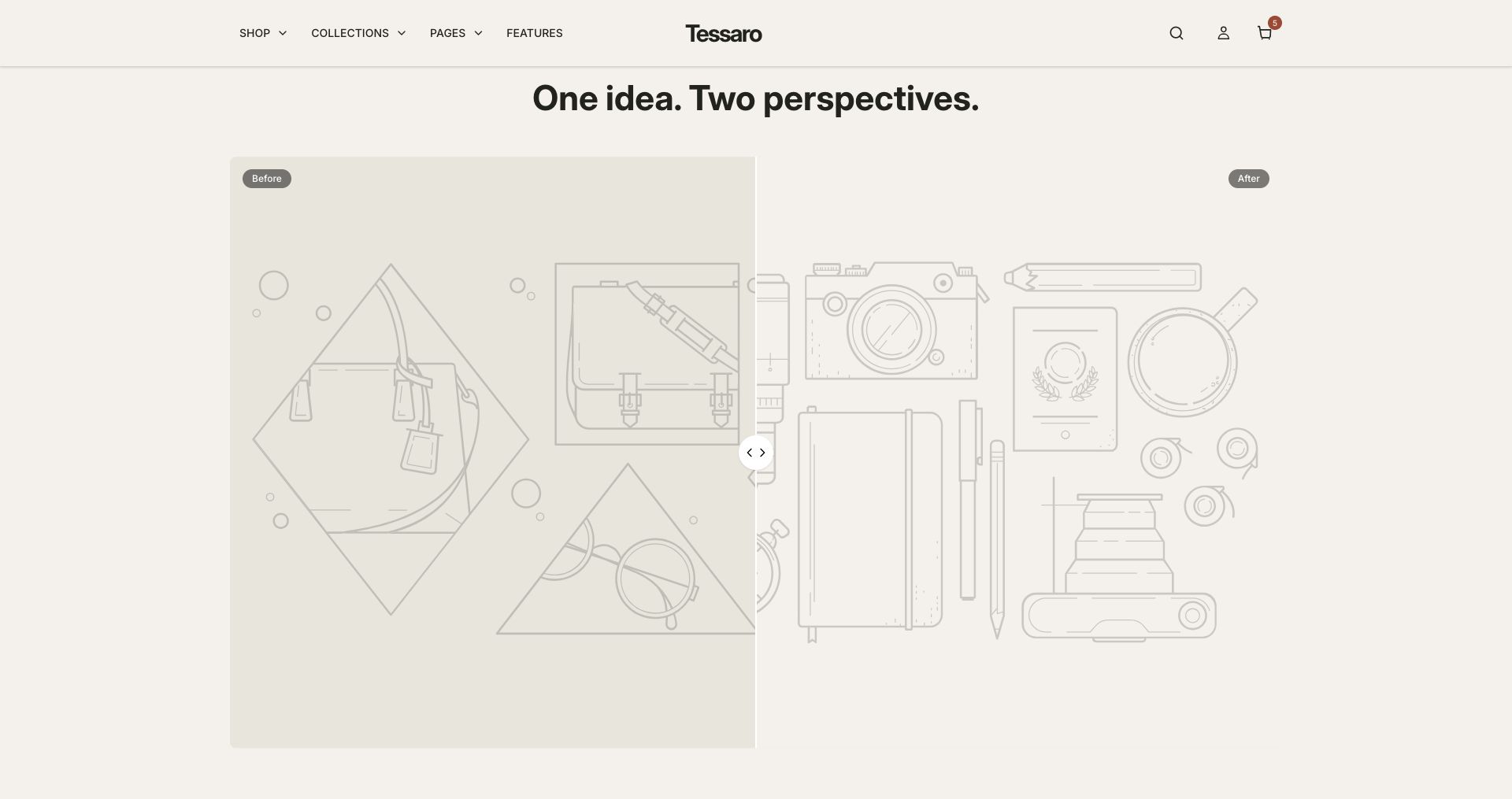
What to look for Both images line up, the labels explain the difference and important detail remains visible throughout the movement.
When to use it#
Compare two images with an interactive before/after divider.
Set up#
Add the supported comparison block and connect the before and after images, labels and starting position.
Available from Add section where supported by its template restrictions.
Section settings#
These are schema defaults. Your installed theme or selected preset can use different saved values.
Heading
Heading#
Adjust this control in the theme editor and preview the result in the relevant template.
- Control
- text
- Default
- See the difference
Subheading#
Adjust this control in the theme editor and preview the result in the relevant template.
- Control
- text
- Default
- Not set
Colors
Subheading color#
Adjust this control in the theme editor and preview the result in the relevant template.
- Control
- color
- Default
- #806042
Spacing
Margins add space outside the section. Padding adds space inside it.
Blocks#
Add, reorder and configure the supported blocks in the editor. Some block types have an individual limit.
Image pair#
Before image#
Adjust this control in the theme editor and preview the result in the relevant template.
- Control
- image picker
- Default
- Not set
After image#
Adjust this control in the theme editor and preview the result in the relevant template.
- Control
- image picker
- Default
- Not set
Before label#
Adjust this control in the theme editor and preview the result in the relevant template.
- Control
- text
- Default
- Before
After label#
Adjust this control in the theme editor and preview the result in the relevant template.
- Control
- text
- Default
- After